PYTHON BASICS
Topics Covered:
- Python overview
- Download Python
- Creating our first program
- Saving and running a program
Python Overview
For CPR2, we use Python as the programming language. One of the primary reasons we chose Python is because it is considered an easy to learn language. The designer of the language emphasized code readability. This is an important feature of a language since it makes the code easier to understand.
In addition to being a great language for beginners, Python is also a very powerful language. It is used in a broad range of applications, including Geographic Information Systems (GIS), artificial intelligence (AI), visualization, machine learning, and robotics.
Python is an object-oriented language, which means your program data is stored as objects that have properties and functions. Most modern programming languages, such as C++, Java, and Visual Basic, are object-oriented.
Finally, Python is one of the most popular programming languages today according to the TIOBE index. Knowing a language that is popular is helpful, since an employer is more apt to value someone having that skill. Also, the resources to learn Python, including books, web sites, tutorials, and videos, are plentiful.
Python uses an interpreter to translate your high-level code into a form that the CPU can understand and execute. Python is an open source language. This means that you can not only download it for free but can even view and modify the code used to create the Python interpreter. The language is also portable, which means the code that you write in one operating system (Windows, Mac, Linux) will work in another. This is a major advantage of using an interpreter rather than a compiler, since interpreted languages don’t need to be translated into a specific computer’s machine code.
Download Python
Python is free. To download Python to your own computer, you must first visit the official website at http://python.org. The top of the Python main web page looks like this:
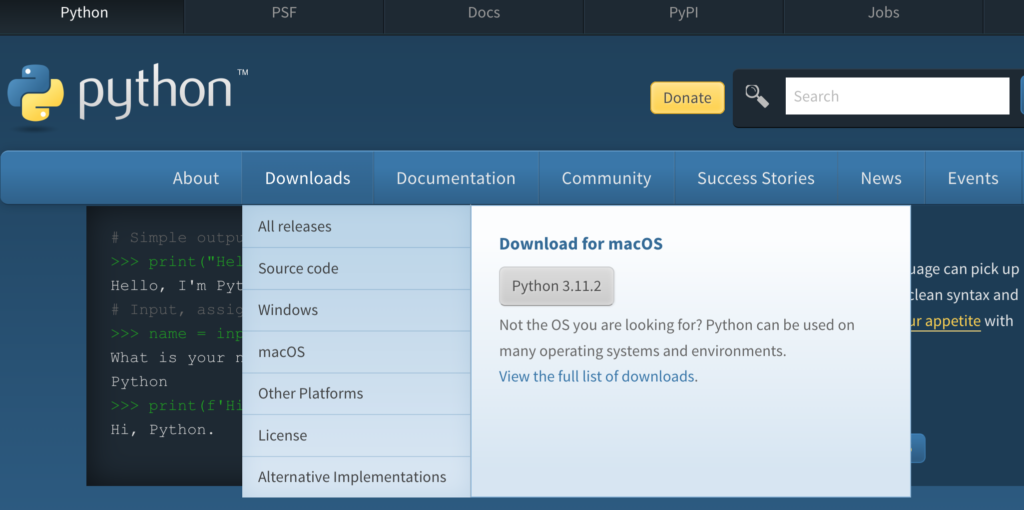
If you scroll over the “Downloads” tab, a smaller window will appear looking like that seen above. The web site will recognize your computer’s operating system so you won’t have to make any difficult decisions. Just click on the button with the current version number (i.e., “Python 3.11.2”). Once you download the file, simply run it and follow any instructions that pop up along the way. It should take a couple of minutes and you’ll be ready to start coding.
You should notice a “Documentation” tab on this initial web page, as well. This is where the official documentation for the Python language resides. This page will be a good resource throughout your programming adventures so make a note of it.
Once you have Python successfully downloaded, there are several ways that you can write and run your Python programs. Idle is an integrated development environment (IDE) for Python. An IDE allows you to create, edit, run, troubleshoot, save, and open your code all in the same easy-to-use program.
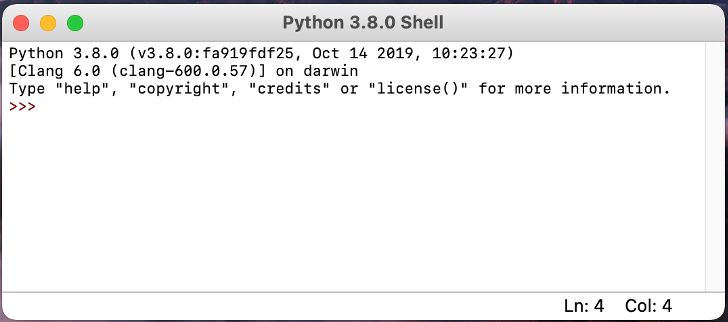
When you open Idle for the first time, a window similar to the one above will appear. The Python version number (In this case, 3.11.2) is shown in the window title and the first line inside the window. The Idle environment has two modes. Initially, the environment is in interactive mode, which allows you to evaluate expressions and individual instructions. When you want to develop a larger program, however, you will want to switch to script mode.
The string “>>>” is the screen prompt which tells you that the environment is waiting for you to type a Python expression or instruction. The interactive mode can be used to play around and just experiment with different commands. Try typing the four expressions shown below following the prompt. You will notice that Python uses different colors for syntax highlighting. The syntax are the rules of the language. More about that later.
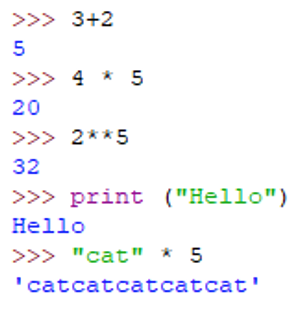
When you type 3+2 and press the Enter key, the result of 5 is returned. Of course, this comes as no surprise. In the interactive mode, the expression you enter is executed immediately. You will notice that all of the program output is displayed by Idle as blue. Obviously, 4*5 resulted in 20. Why did 2**5 return 32? If it isn’t obvious, see if you can research (i.e., Google) the answer.
Whenever you want to display something in Python, you use a special function called print. All of the built-in Python functions appear as purple in Idle. Also note how the word “hello” appeared in double quotes. This means it is a string, or sequence of characters. Idle displays strings using green. The last example had a string, followed by *, followed by a whole number. How did Python evaluate that expression?
Creating our First Program
Most of the time, we want to write larger programs, which are sometimes called scripts. You do not want to write a full-fledged script using the interactive mode. Instead, go into script mode by clicking on “File” and then “New File.” A convenient way to program in this mode is to resize this new script window and put it in the right side of your screen. Resize the interactive window and place it on the left side of your screen:
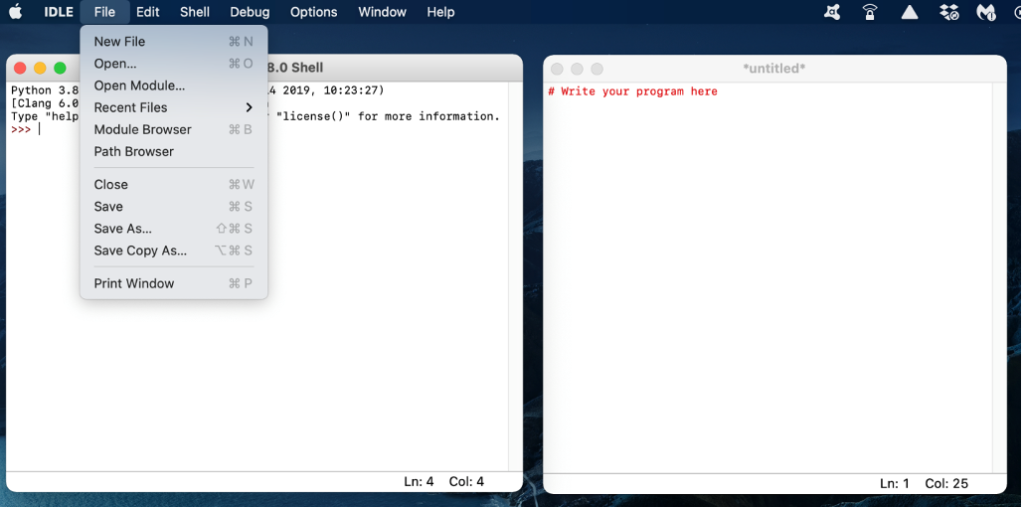
Now, let’s talk about a problem to solve. Suppose we needed a program to convert your dog’s age to its human equivalent. In your new script window, type the following program. We will break each instruction down, line by line, afterwards.
Note: It is important that you actually type in this program to get used to this environment of creating, editing, troubleshooting, saving, and running programs.
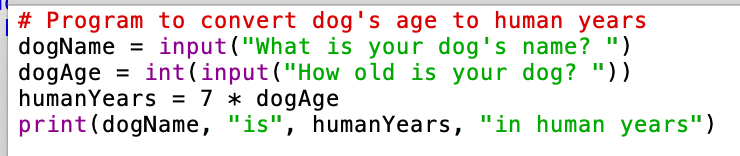
The line at the top of this programming that begins with the pound sign (#) is called a comment. When the interpreter goes to translate and run your code, it will ignore comments. These lines are added to document your program. That is, the comments will describe your program and various aspects of it. As a minimum, you should include a line or two at the top of each program describing what it is doing.
The print function is used to display information to the screen. Each print statement will send an output to a new line. With the print function, you include what you want displayed inside parentheses. Anything inside the parentheses of a function is called a parameter. With no parameter, the print function simply outputs a blank line.
The input function is used to get information from the user via the keyboard. The program will pause until the user types information followed by the Enter key. Data will be read in as a string and stored as a variable, which is simply a named memory location. The parameter for the input function is a prompt that is displayed as a hint to the user indicating what should be entered at the keyboard.
After the input instructions, we use our formula to compute the human equivalent. We simply multiply the dog’s age by seven. The final step is to output the dog’s name and human age. The print statement uses four parameters – the dog’s name, the word “is”, the human age, and a label “in human years”. Notice that the labels have quotes around it and the variables do not. When printing a variable, the contents of the variable will be output, not the actual name of the variable.
Saving and Running a Program
Finally, we are ready to run the program. In Idle, click “Run” on the menu and then “Run Module” to execute your program. Alternatively, the “F5” function key is treated as a shortcut to trigger this same action. When you run the program, the output and interaction will occur in your interactive screen.
Note: Idle will force you to save your program before you run it. All of your Python programs will end with a “.py” file extension. You should save all of your programs to a common location that you can access conveniently. Also, you should save using a meaningful file name like “electricity.py”.
Now, let’s find the human age equivalent for a 2-year old dog named Jackson. The interaction would like that shown:
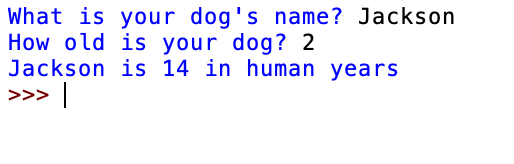
The program shows us Jackson would be 14 in human years. We have a working program that solves our problem!
It is possible that your program did not run successfully. If you mistype one or more instructions, you may have created a syntax error, which is when one of your instructions breaks the rules of the language. For example, suppose you forget the closing right parenthesis at the end of the first print instruction. As shown below, Idle will display a pop-up screen with an error message. The position of that error will be highlighted in red in your program code.
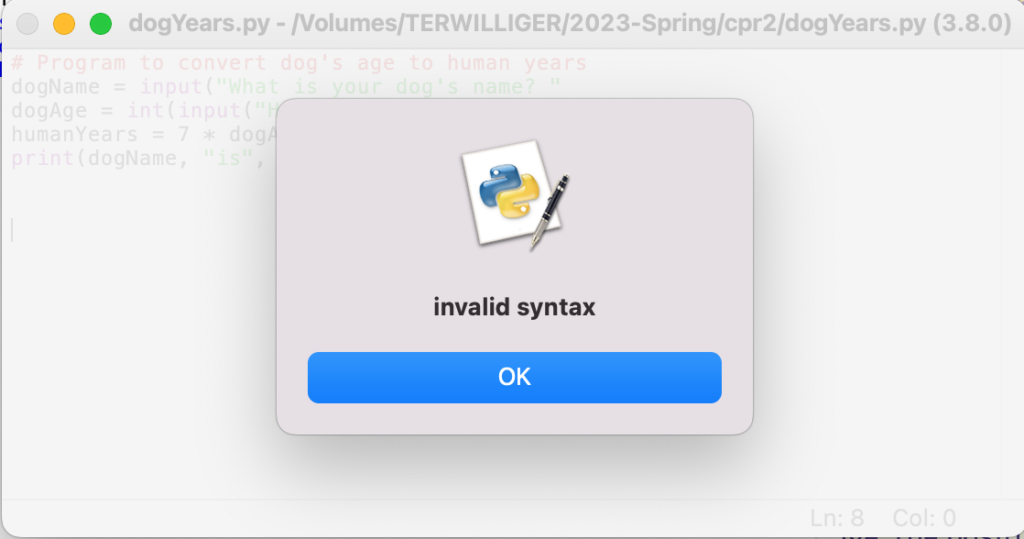
Now that you’ve successfully created, saved, and run your first Python program, it’s time to start digging deeper. Your CPR2 instructors will discuss the basics needed for this professional development session. If you want to explore more Python topics, feel free to explore this free textbook using the link at the top of the page.
INTERACTIVE – Do I really need to download Python?
It is highly recommend that you follow the instructions provided to download Python to your computer. It is possible, though, to create and run Python programs using your web browser. A website called http://trinket.io provides a full Python interpreter. We provide this plug-in along with some instructions in our Try Python page. You can give it a spin right now in the screen below. After you successfully run the “hello world” program, add another print statement to display your full name, and then run the program again.
CONGRATULATIONS!!
If you’ve made it this far, congratulations. You are ready for the PD session to begin. If you have questions or issues, simply contact Mark Terwilliger at mterwilliger@una.edu.