
WORKING WITH FILE SYSTEMS AND COMMAND-LINE TOOLS
Topics Covered:
- Understanding file systems and how they organize data on storage devices
- Creating effective file naming conventions and organizational strategies
- Working with file extensions and understanding different file formats
- Leveraging cloud storage for backup, synchronization, and collaboration
- Compressing files to save space and facilitate sharing
- Navigating and managing files using command-line interfaces
This chapter introduces students to the structure and management of computer file systems — the foundation of how data is stored, organized, and accessed. Students will explore how operating systems such as Windows and macOS manage files and folders, learn naming conventions and file extensions, and gain hands-on experience using both graphical and command-line interfaces. These skills provide essential background for programming, where reading and writing files are common tasks.
9.1 Understanding File Systems
9.1.1 What Is a File System?
A file system is the method an operating system uses to organize, store, and retrieve data on storage devices. Think of it as a massive filing cabinet where everything has a specific location and address. Without a file system, your computer would have no way to distinguish one document from another or remember where anything is stored.
Modern file systems do much more than simply store data. They:
- Track file locations on physical storage media
- Manage file names, sizes, and timestamps
- Control access permissions and security
- Enable efficient searching and indexing
- Support file recovery and backup operations
- Coordinate access when multiple programs need the same file
When you save a Word document or download an image, the file system determines where those bytes of data physically reside on your hard drive or SSD, creates an entry in its directory structure, and maintains metadata about the file such as creation date, size, and associated application.
9.1.2 Common File System Types
Different operating systems use different file systems, each with distinct characteristics:
NTFS (New Technology File System): The default file system for modern Windows computers since Windows NT. NTFS supports large files and volumes, file-level security permissions, encryption, compression, and advanced recovery features. It’s the most robust option for Windows systems but has limited compatibility with macOS and Linux.
FAT32 (File Allocation Table 32): An older file system with excellent cross-platform compatibility. FAT32 works on Windows, macOS, Linux, game consoles, and most devices with USB ports. However, it has significant limitations: individual files cannot exceed 4 GB, volumes cannot exceed 2 TB, and it lacks security features. FAT32 remains common for USB flash drives due to its universal compatibility.
exFAT (Extended File Allocation Table): Microsoft’s successor to FAT32, designed for flash drives and SD cards. exFAT removes FAT32’s file size and volume limitations while maintaining cross-platform compatibility. It’s ideal for external drives that need to work on both Windows and macOS.
APFS (Apple File System): The default file system for macOS (since High Sierra in 2017) and iOS devices. APFS is optimized for solid-state drives and flash storage, providing better performance, security, and space management than its predecessor HFS+. It supports encryption, snapshots for backups (Time Machine), and efficient cloning of files.
ext4 (Fourth Extended Filesystem): The standard file system for most Linux distributions. ext4 provides excellent performance, supports very large files and volumes, and includes journaling to prevent data corruption during system crashes.
Business Insight: When formatting an external drive, choose the file system based on how you’ll use it. For maximum compatibility between Windows and Mac computers, use exFAT. If you’ll only use the drive with Windows computers and need advanced features like encryption, choose NTFS.
9.1.3 Hierarchical Structure of Files and Folders
File systems organize data in a hierarchical tree structure, similar to a family tree or corporate organizational chart. This structure starts with a root directory and branches out into folders (also called directories) and files.
Root Directory: The top-level directory of a file system, from which all other directories branch. In Windows, each drive has its own root (C:\, D:\, etc.). In macOS and Linux, there’s a single root directory denoted by a forward slash (/).
Folders/Directories: Containers that hold files and other folders. Folders help organize related items logically—for example, keeping all documents for a project together or separating work files from personal files.
Files: The actual data units—documents, images, programs, spreadsheets, etc. Each file has a name and extension that typically indicates its type.
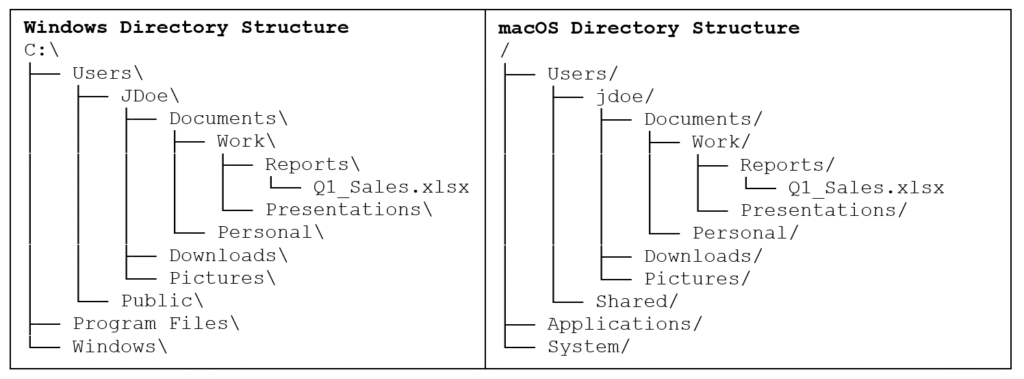
Subfolders: Folders within folders, creating multiple levels of organization. There’s no theoretical limit to how deeply you can nest folders, though extremely deep structures can become difficult to navigate.
This hierarchical structure provides several benefits:
- Logical organization that mirrors how humans think about categories
- Efficient searching by narrowing down location
- Clear separation between different users’ files
- Ability to set permissions at different levels
- Easier backup by selecting entire folder branches
9.2 Managing Files and Folders
9.2.1 Creating and naming files/folders
Effective file and folder creation goes beyond simply clicking “New Folder.” Thoughtful naming conventions and organizational strategies save significant time when you need to locate specific files months or years later.
File and Folder Naming Best Practices:
Use Descriptive Names: Instead of “Document1.docx” or “Untitled.xlsx,” use names that clearly indicate content:
- Poor: doc1.docx, project.xlsx, stuff.pdf
- Better: Marketing_Plan_2025.docx, Q1_Budget.xlsx, Employee_Handbook_v2.pdf
Include Dates When Relevant: For files that change over time, include dates in a sortable format (YYYY-MM-DD):
- 2025-01-15_Meeting_Notes.docx
- Budget_2025-03_Q1.xlsx
- Report_Draft_2025-02-10.pdf
Use Version Numbers: For documents that go through multiple revisions:
- Proposal_v1.docx, Proposal_v2.docx, Proposal_Final.docx
- Or: Proposal_Draft.docx, Proposal_Review.docx, Proposal_Final.docx
Avoid Special Characters: These can cause problems with certain programs and operating systems:
- Avoid: / \ : * ? ” < > |
- Use instead: – (hyphen), _ (underscore), or spaces
- Poor: Client/Vendor File.docx (won’t work on macOS)
- Better: Client_Vendor_File.docx or Client-Vendor File.docx
Be Consistent: Choose a naming convention and stick with it across your files:
- Decide on capitalization: TitleCase, lowercase, or UPPERCASE
- Decide on separators: underscores, hyphens, or spaces
- Decide on date formats: YYYY-MM-DD is recommended for proper sorting
Keep Names Reasonably Short: While modern systems support very long names (255+ characters), shorter names are easier to work with:
- Aim for 25-50 characters when possible
- Remove unnecessary words: “a,” “the,” “document”
- Poor: This is a document containing the quarterly sales report for Q1.docx
- Better: Q1_Sales_Report.docx
9.2.2 Organizing information logically
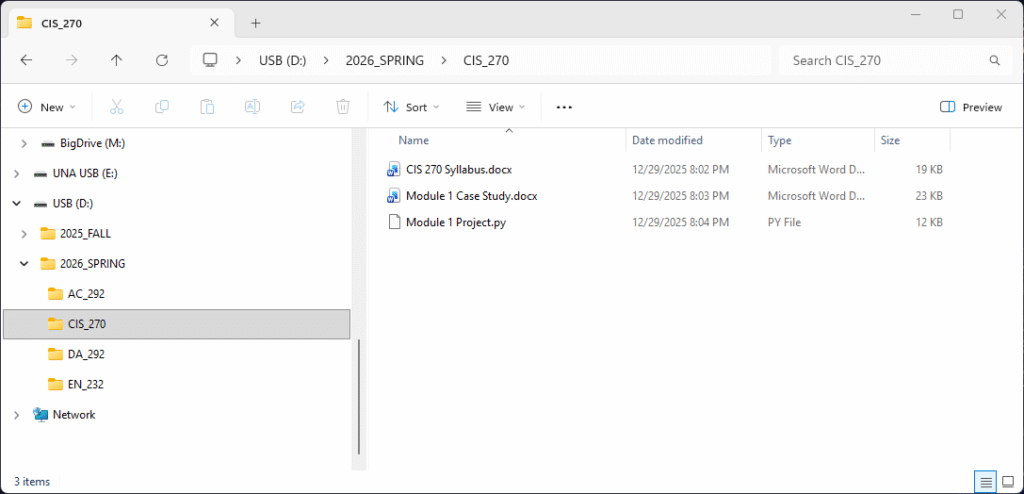
Well-organized files and folders save hours of searching and reduce the risk of losing important documents. Think of your file system as a personal library. Proper organization makes everything easier to find. It’s a good idea to group related items together in ways that match how you think about your work. Also, it’s a good idea to be consistent. If you organize one class by topic, organize all classes that way. Consistency makes finding files intuitive. Rather than deleting old files, move them to archive folders.
9.2.3 File Properties and Metadata
Every file contains not just its content but also metadata—information about the file itself. Understanding and using metadata helps with organization, searching, and troubleshooting.
Common File Properties:
- Name and Extension: The file’s identifier and type indicator (e.g., Report.docx)
- Size: How much storage space the file occupies, typically measured in bytes, kilobytes (KB), megabytes (MB), or gigabytes (GB)
- Type: The kind of file (Microsoft Word Document, JPEG Image, PDF, etc.), determined by the extension
- Date Modified: When the file’s content was last changed
- Date Created: When the file was originally created on this system
- Date Accessed: When the file was last opened or read
- Attributes: Special flags like Read-only (prevents modification), Hidden (doesn’t appear in normal file listings), or Archive (indicates whether the file has been backed up)
Viewing File Properties:
- Windows: Right-click file → Properties (or press Alt+Enter)
- macOS: Right-click file → Get Info (or press Cmd+I)
Advanced Metadata for Specific File Types:
- Documents: Author, title, subject, keywords, revision number, word count
- Images: Dimensions, resolution, camera model, GPS coordinates, exposure settings
- Videos: Duration, frame rate, codec, bit rate
- Audio: Artist, album, track number, genre, duration
9.3 Understanding File Extensions and Formats
9.3.1 What Is a File Extension?
A file extension is the suffix at the end of a file name, typically consisting of a period followed by three or four characters (though extensions can be longer). The extension tells both the operating system and users what type of file it is and which program should open it.
For example, imagine a file named Budget_2025.xlsx. “Budget_2025” is the file name and “.xlsx” is the file extension, indicating that it is a Microsoft Excel Workbook.
File extensions are crucial because they determine which application opens the file when you double-click it, which icon appears next to the file name, what operations are available (such as editing, viewing, or converting), and how the file should be processed by programs.
9.3.2 Common File Extensions
| Extension | File Type | Use |
| .txt | Plain text file | Only ASCII/Unicode characters, no formatting information |
| .docx | Microsoft Word Document | Text, graphics, and formatting information |
| Adobe Portable Document Format | Preserves formatting across devices, not easy to edit | |
| .rtf | Rich Text Format | Formatted text, but not advanced features |
| .xlsx | Microsoft Excel Workbook | Formulas, charts, advanced calculations and formatting |
| .csv | Comma-Separated Values | Plain text, tabular data, no formatting |
| .jpg or .jpeg | Joint Photographic Experts Group | Compressed photo format |
| .png | Portable Network Graphics | Compressed photo format, with transparency |
| .gif | Graphics Interchange Format | Compressed photo format, limited to 256 colors, supports animation |
| .bmp | Bitmap | Uncompressed photo format, maintains maximum image quality |
| .mp3 | MPEG Audio Layer 3 | Compressed audio format, widely supported |
| .wav | Waveform Audio File Format | Uncompressed audio, used for professional audio editing |
| .mp4 | MPEG-4 Video | Compressed video format, widely supported |
| .zip | Compressed Archive | Common compression format, widely supported |
| .rar | Roshal Archive | Proprietary compression format, often achieves better compression |
| .exe | Windows Executable File | Runs programs on Windows |
| .app | macOS Application | Runs programs on macOS |
| .py | Python source code | Contains Python programming code, can be executed |
| .html | Hypertext Markup Language | Web pages |
| .css | Cascading Style Sheets | Web page styling |
9.4 Cloud Storage and File Synchronization
9.4.1 Introduction to Cloud Storage
Cloud storage services store your files on remote servers accessed via the Internet, rather than only on your local device. Popular services include Microsoft OneDrive, Google Drive, Apple iCloud, and Dropbox.
Key benefits of cloud storage:
- Automatic backup protection against device failure
- Access files from any device with Internet connection
- Easy file sharing with others
- Collaboration features for real-time editing
- Synchronization keeps files updated across devices
- Frees up local storage space
Major Cloud Storage Providers:
Microsoft OneDrive:
- Free: 5 GB
- Integrates with Windows and Microsoft 365
- Built into Windows 10/11
- Excellent Office document integration
- Education accounts often include 1 TB+ storage
Google Drive:
- Free: 15 GB (shared with Gmail and Photos)
- Integrates with Google Workspace (Docs, Sheets, Slides)
- Excellent collaboration features
- Can open many file types without downloading
- Education accounts often include unlimited storage
Apple iCloud:
- Free: 5 GB
- Seamless integration with macOS and iOS devices
- Automatic photo and document backup on Apple devices
- iCloud Drive for file storage
- Cannot easily access from non-Apple devices
Dropbox:
- Free: 2 GB
- Pioneered modern file synchronization
- Excellent version history
- Strong third-party app integration
- Popular in business environments
9.4.2 Syncing vs. Backing Up
Understanding the difference between syncing and backing up is crucial for protecting your data properly.
File Synchronization:
- Keeps files identical across multiple locations
- Changes on one device automatically appear on others
- Bidirectional: changes sync both ways
- Real-time or near real-time updates
- Example: Edit a document on your laptop; the changes appear on your phone
File Backup:
- Creates a one-way copy at a specific point in time
- Original remains unchanged regardless of backup modifications
- Usually scheduled (daily, weekly) rather than real-time
- Often keeps multiple versions (snapshots)
- Example: Weekly backup of your entire hard drive
Cloud Storage Services Typically Provide Both:
- Automatic syncing of files in designated folders
- Backup protection through version history
- But may not back up your entire computer
Important Distinction:
- Sync: You accidentally delete a file → it’s deleted from cloud and all devices
- Backup: You accidentally delete a file → it’s still in your backup snapshots
Best Practice: Use cloud storage for active files and syncing, but also maintain separate backups (external drive or dedicated backup service) for disaster recovery.
9.5 File Compression and Archiving
9.5.1 Why Compress Files?
File compression reduces file size by encoding data more efficiently. Compressed files require less storage space, allowing more data to be stored in limited drive storage. This also results in files that transfer faster over networks and cost less to store in cloud services, since storage is usually billed by Gigabyte or Terabyte. Compressing multiple files into archives also helps to make email attachments more manageable.
Compression is particularly useful for emailing multiple files as a single attachment, archiving old projects to save space, backing up files to external drives, submitting assignments with multiple files, and distributing software or datasets.
Some scenarios are especially well-suited for compression. Submitting multiple assignment files to a learning management system becomes much simpler when everything is bundled into a single archive. Similarly, emailing several photos or documents, backing up project folders, archiving completed work to free up space, and distributing software or resources all benefit significantly from compression.
However, not all situations call for compression. Compressing already-compressed files like JPG images, MP3 audio files, or MP4 videos wastes time with minimal benefit, as these formats are already optimized for size. Creating single-file archives also doesn’t make sense—it’s simpler to just send the original file. Additionally, using compression for long-term archival on slow media can be problematic, as uncompressed files are more resilient to corruption over time.
Table 9.2 Types of Compression
| Lossless Compression: | Lossy Compression: |
| Original data can be perfectly reconstructedFile size reduction varies by content typeBest for documents, code, executablesExamples: ZIP, 7z, RARText files compress very well (often 50-90% reduction)Already-compressed files (JPG, MP3) don’t compress much further | Some original data is permanently lostMuch greater size reduction possibleOnly acceptable for certain media typesExamples: JPEG (images), MP3 (audio), MP4 (video)Not suitable for documents or programs |
9.5.2 How to Compress and Decompress Files
Creating ZIP Files
Windows – Create ZIP Archive:
1. Select files and/or folders to compress
2. Right-click selection
3. Choose “Send to” → “Compressed (zipped) folder”
4. ZIP file appears with .zip extension
5. Rename if desired
macOS – Create ZIP Archive:
1. Select files and/or folders to compress
2. Right-click (or Control+click) selection
3. Choose “Compress Items”
4. ZIP file appears with name based on selection
5. For single item: “Filename.zip”
6. For multiple items: “Archive.zip”
Extracting ZIP Files
Windows – Extract ZIP Contents:
1. Right-click ZIP file
2. Select “Extract All”
3. Choose destination folder
4. Check “Show extracted files when complete”
5. Click “Extract”
macOS – Extract ZIP Contents:
1. Double-click ZIP file
2. Contents automatically extract to same location
3. Folder appears with same name as ZIP (minus extension)
9.6 Introduction to the Command Line / Terminal
9.6.1 What Is a Command-Line Interface?
A command-line interface (CLI) allows you to interact with your computer by typing text commands rather than clicking icons and menus. While graphical user interfaces (GUIs) are intuitive for beginners, command lines offer several distinct advantages. Once you learn the commands, command-line operations are often faster for many tasks. The CLI provides the ability to automate repetitive tasks with scripts and offers more precise control over system operations. It also grants access to advanced features not available in GUIs. Perhaps most importantly, command-line skills are universal and transfer across different operating systems, forming an essential foundation for programming and system administration.
Think of the relationship this way:
- GUI is like ordering from a menu by pointing
- CLI is like ordering in the kitchen’s language
The command line might seem intimidating at first, but it follows logical patterns. Once you understand basic commands, you can combine them in powerful ways.
9.6.2 Accessing the Command Line
Windows users have several command-line options available. The traditional Command Prompt (cmd) provides basic command-line functionality, while PowerShell offers more advanced capabilities for power users. Modern Windows systems also include Windows Terminal, a significantly improved interface that supports tabs for multiple sessions, customizable appearance, and compatibility with Command Prompt, PowerShell, and the Linux subsystem. Windows Terminal is available free from the Microsoft Store and provides the best overall experience. macOS users can access the command line through the Terminal application, which is located in the Utilities folder within Applications or can be quickly launched using Spotlight search.
When you open a command-line interface, you see a prompt showing your location in the file system.
Windows Command Prompt Format:
C:\Users\JDoe>
- C:\ = Drive letter
- Users\JDoe = Path to current directory
- > = Prompt symbol (ready for your command)
Windows PowerShell Format:
PS C:\Users\JDoe>
- PS = PowerShell indicator
- C:\Users\JDoe = Current path
macOS/Linux Terminal Format:
MacBook:~ jdoe$
- MacBook = Computer name
- ~ = Home directory (shortcut for /Users/jdoe)
- jdoe = Current user
- $ = Regular user prompt (# means root/admin)
9.6.3 Essential Command Line Actions
| Task | Windows | macOS/Linux |
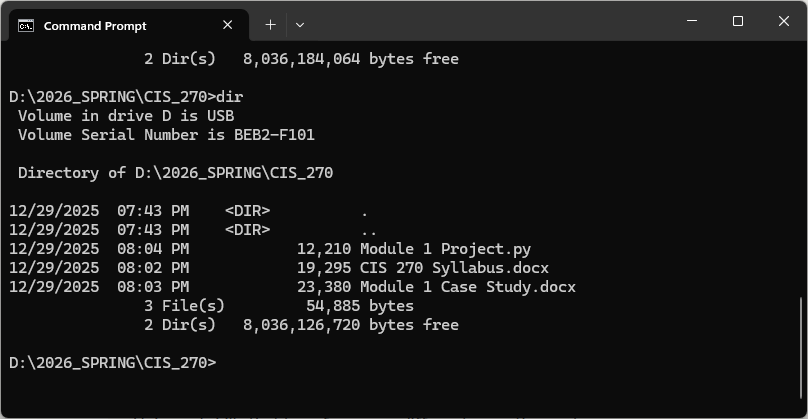
| List directory contents | dir | ls |
| List with details | dir (shows details by default) | ls -l |
| Show hidden files | dir /a | ls -a |
| Show current location | cd or echo %cd% | pwd |
| Change to a folder | cd FolderName | cd FolderName |
| Go up one level | cd .. | cd .. |
| Go to root directory | cd \ | cd / |
| Create a folder | mkdir FolderName or md FolderName | mkdir FolderName |
| Create nested folders | mkdir Parent\Child\GrandChild | mkdir -p Parent/Child/GrandChild |
| View file contents | type filename.txt | cat filename.txt |
| View file page-by-page | more filename.txt | less filename.txt |
| Copy a file | copy source.txt destination.txt | cp source.txt destination.txt |
| Copy all files of a type | copy *.txt C:\Backup\ | cp *.txt /backup/ |
| Copy folder and contents | xcopy Source Dest /e /i | cp -r Source Dest |
| Move/rename a file | move oldname.txt newname.txt | mv oldname.txt newname.txt |
| Delete a file | del filename.txt | rm filename.txt |
| Delete all files of a type | del *.txt | rm *.txt |
| Remove empty folder | rmdir FolderName | rmdir FolderName |
| Remove folder and contents | rmdir /s FolderName | rm -r FolderName |
| Get help for a command | command /? or help | man command or command –help |
| Clear the screen | cls | clear |
Wildcards:
* = Matches any characters (e.g., *.txt matches all .txt files)
? = Matches single character (e.g., Doc?.txt matches Doc1.txt, DocA.txt)
Important Note: Command-line deletion is permanent—deleted files do not go to the Recycle Bin or Trash and cannot be easily recovered.
9.6.4 Why Learn Command Line for Programming?
Understanding command-line operations is essential for programming.
1. Running Python Programs:
C:\>python myscript.py
2. Installing Python Libraries:
C:\>pip install pandas
3. Batch Operations:
- Process hundreds of files with a single command
- Automate repetitive tasks
4. Server and Cloud Operations:
- Many servers only have command-line access
- Cloud deployments often require CLI tools
As you progress in programming, you’ll find the command line becomes second nature—a faster, more powerful way to interact with your computer than clicking through menus.
9.7 Chapter Summary
- The file system provides the structure that allows users and programs to store and retrieve data.
- Effective file management is essential for maintaining data integrity and efficiency.
- Understanding command-line navigation empowers users to work more efficiently and prepares them for programming tasks involving file input and output.
Review Questions
1. Which of the following is the correct file extension for a Microsoft Excel spreadsheet in the modern format?
a. .xls
b. .xlsx
c. .csv
d. .txt
2. Which command is used to list the contents of a directory in macOS/Linux?
a. dir
b. ls
c. list
d. show
3. What is the main difference between file synchronization and file backup?
a. Synchronization is faster than backup
b. Backup creates a one-way copy at a point in time, while synchronization keeps files identical across locations in real-time
c. Synchronization requires more storage space
d. Backup only works with cloud storage
4. True or False: Compressing a file that is already in a compressed format (like a .jpg image) will significantly reduce its file size.
5. What does the file extension .csv indicate?
a. A Microsoft Word document
b. A compressed archive
c. Comma-separated values (plain text tabular data)
d. An executable program
Projects
9.1 File System Organization Challenge
Create a well-organized file structure for a hypothetical semester of college coursework. Your structure should include:
- A main “SPRING_2026” folder
- Subfolders for at least three different courses (e.g., CIS_270, MK_360, AC_292)
- Within each course folder, create appropriate subfolders for:
- Lecture notes
- Assignments
- Study materials
- Project work
- Create at least 2-3 sample files in each subfolder using appropriate naming conventions
- Include dates in file names where appropriate
- Write a brief README.txt file in the main folder explaining your organizational structure
Deliverable: Take screenshots showing your folder structure in File Explorer/Finder, or use the command line to generate a directory tree and save the output to a text file.
9.2 Command-Line Navigation Practice
Practice navigating your file system using only command-line tools:
1. Open Command Prompt (Windows) or Terminal (macOS)
2. Navigate to your home directory
3. Create a new folder called “CLI_Practice”
4. Navigate into the CLI_Practice folder
5. Create three subfolders: “Documents”, “Images”, “Archives”
6. Create an empty text file in the Documents folder called “notes.txt”
7. Copy notes.txt to the Archives folder
8. Rename the copy in Archives to “notes_backup.txt”
9. List the contents of each folder to verify your work
10. Navigate back to your home directory
Document each command you used by copying and pasting your terminal session into a text file. Include brief comments explaining what each command does.